Connect Claude to Jolv (MCP)
Connect Claude to your Jolv data in a few minutes. Claude reads your funds, companies, valuations and campaigns with your own Jolv permissions, read-only: it sees nothing you can't already see in the application, and it can't change anything.
Connector address
https://jolv-mcp.vercel.app/mcpBefore you start
- An active Jolv account. If your organisation requires two-factor authentication, enable it in Jolv first (Profile → Security).
- A Claude account that lets you add custom connectors (claude.ai or the Claude app).
Step by step
1. Open Claude's connectors
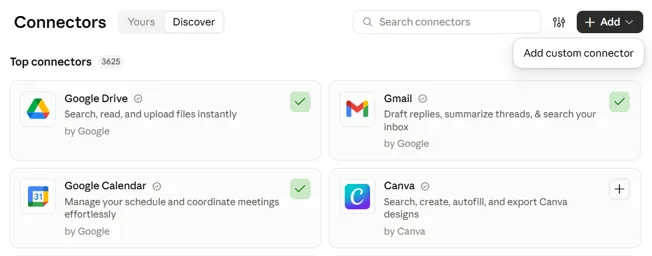
In Claude, open Customize → Connectors (in the desktop app: Settings → Connectors). Click “+ Add”, then “Add custom connector”.
2. Declare the Jolv connector
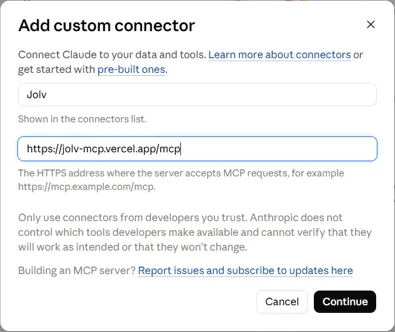
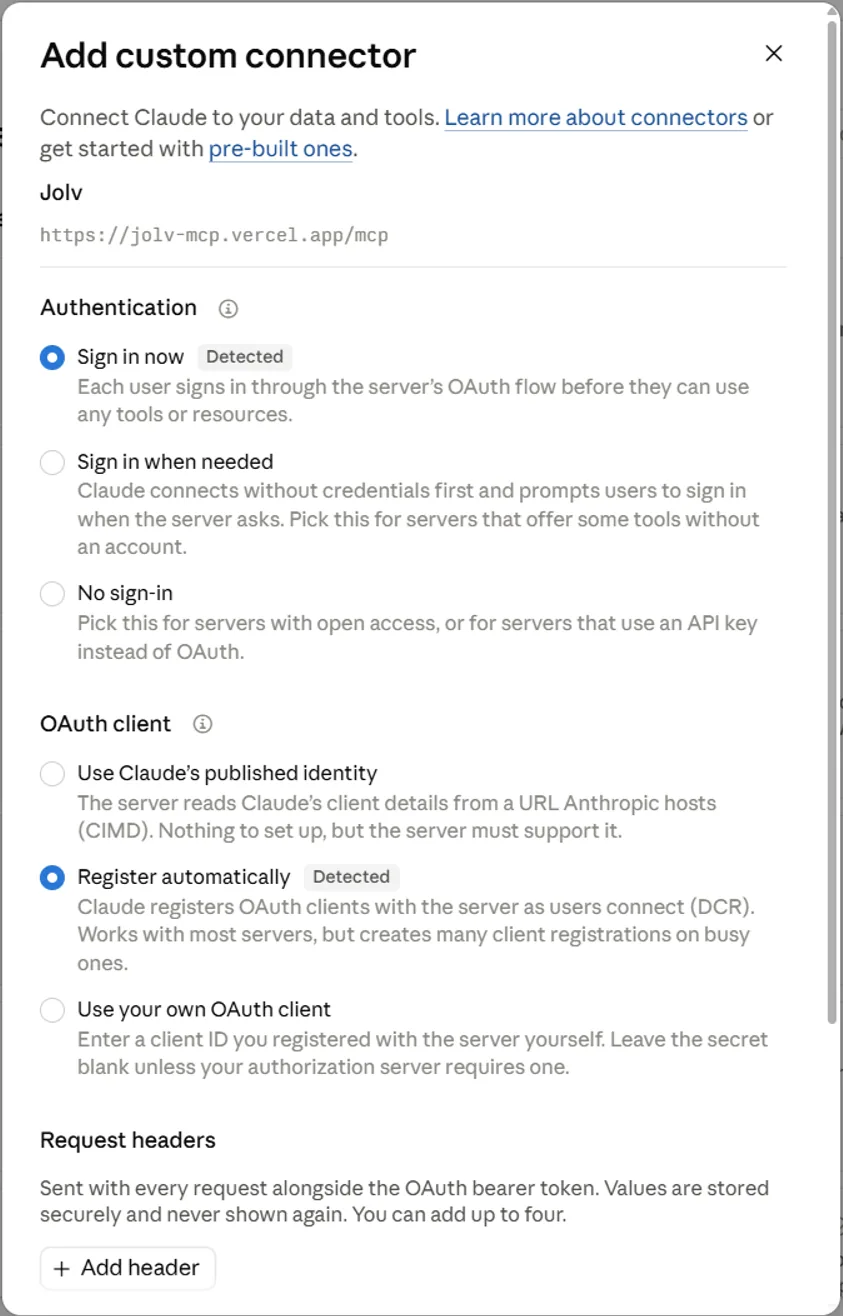
Name it “Jolv”, paste the connector address and click “Continue”. On the next screen, keep “Sign in now” and “Register automatically”, which Claude detects on its own, don't add any header, then confirm.
3. Sign in to Jolv
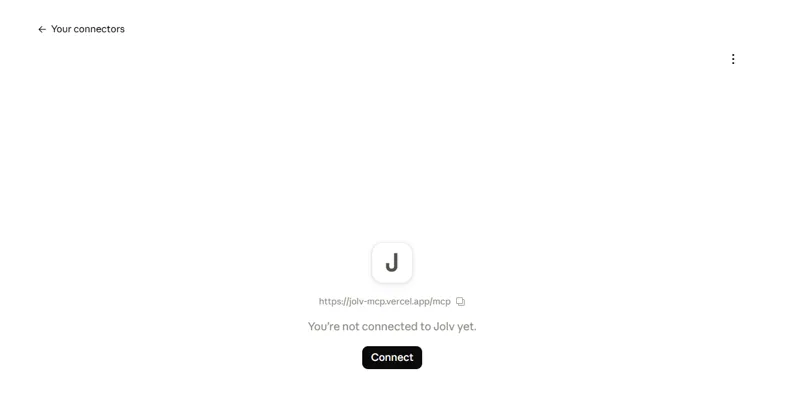
Claude shows “You're not connected to Jolv yet”: click “Connect”. A jolv.app page opens: sign in with your usual Jolv account, and enter your two-factor code if it is enabled.
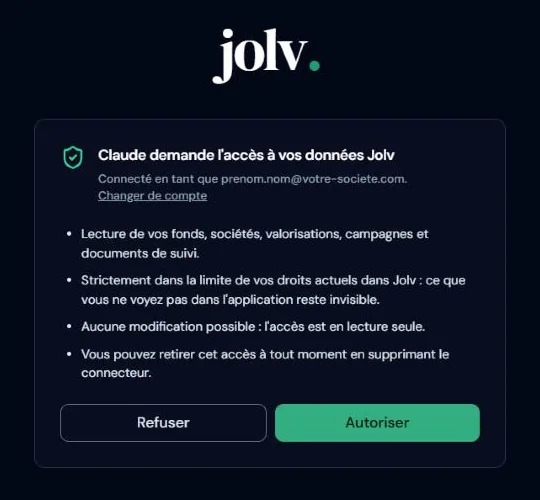
4. Allow access
Jolv shows the application requesting access and the signed-in account. Check that it is Claude and your account, then click “Allow”. Only Claude can be allowed: any other application is refused automatically.
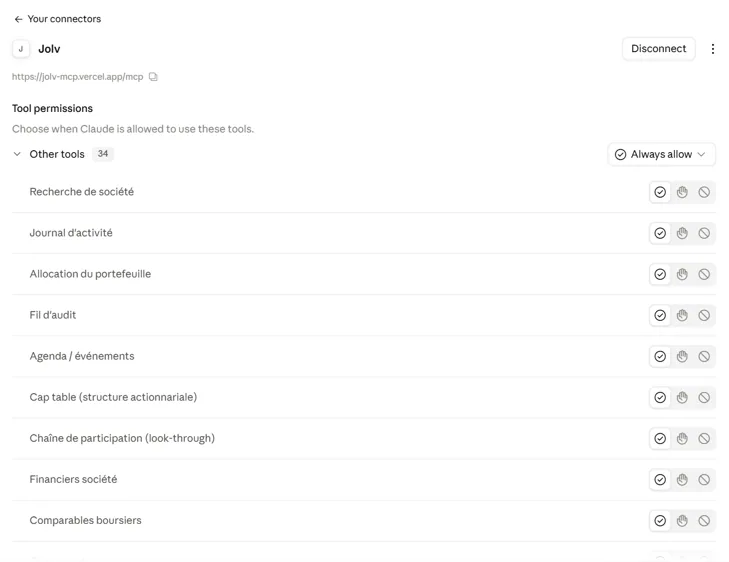
5. Check the connector is active
Back in Claude, the Jolv connector page lists its tools (company search, cap table, financials, comparables…). You can set, tool by tool, when Claude is allowed to use them.
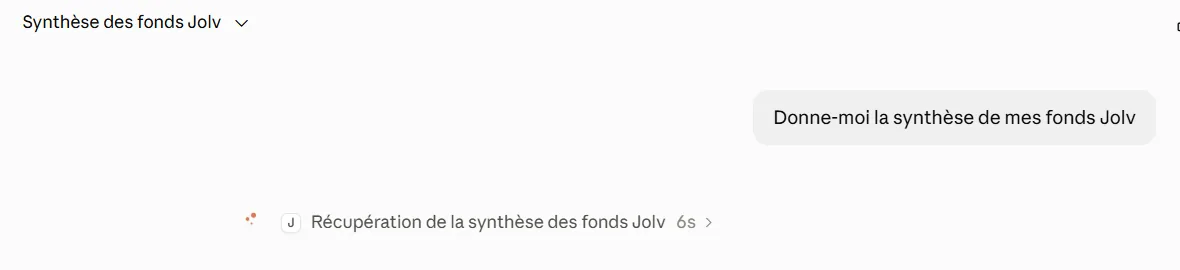
6. Ask your first question
In a conversation, ask for example “Give me a synthesis of my Jolv funds” or “What is the latest valuation of [company] and which method was used?”. Claude calls Jolv (the call shows in the conversation), then answers with the figures from your campaigns.
What Claude can and cannot do
- Read your Jolv data strictly within your permissions: the funds, companies and documents you see in the application.
- No writes: Claude can't create, change or delete anything in Jolv.
- Every call is tied to your account and logged.
- If your permissions change in Jolv (funds removed, account suspended), Claude reflects it immediately.
Revoke access
In Claude, open Customize → Connectors → Jolv, then “Disconnect” or remove the connector. Access stops within one hour at most, when the last token expires.
Troubleshooting
- The connector shows “connected” but lists no tools.
- Claude is still using an old authorisation. Remove the connector (⋮ menu), then add it again following this guide.
- The Jolv page says the request is invalid or has expired.
- The request expired, or it was opened in another browser. Start the connection again from Claude.
- Claude finds no data.
- Your organisation may require two-factor authentication: enable it in Jolv (Profile → Security), then reconnect the connector. Also check that your account has access to the funds in question.
- Jolv shows “Unrecognised application”.
- The application requesting access is not Claude. Deny it: no data is shared.